
Forward events to common destinations
NXLog Agent can forward telemetry data to a wide range of destinations. Below, we provide examples of forwarding events to common destinations. Refer to the NXLog Agent Reference Manual for a complete list of output modules.
Write events to a file
The simplest form of output is writing data to a file using the File output module. This output option is useful as a debug checkpoint when creating a new configuration, to ensure the output is formatted correctly before forwarding it to the intended destination.
This configuration collects Windows events using the Event Log for Windows input module. It converts the events to JSON format and writes them to a file using the File output module.
<Extension json>
    Module    xm_json
</Extension>

<Input windows_events>
    Module    im_msvistalog
    Exec      to_json(); (1)
</Input>

<Output file>
    Module    om_file
    File      'C:\output\windows-events.log' (2)
</Output>

<Route events_to_file>
    Path      windows_events => file (3)
</Route>| 1 | The to_json() procedure converts the data to JSON and writes it to the $raw_event field. |
| 2 | The File directive specifies the path to the output file. |
| 3 | The Route connects the source to the destination. |
The following JSON object shows a Windows event after NXLog Agent processed it.
{
  "EventTime": "2025-10-07T13:39:16.961769+01:00",
  "Hostname": "WINAB-2JR3FR9RD",
  "Keywords": "9259400833873739776",
  "LevelValue": 4,
  "EventType": "INFO",
  "SeverityValue": 2,
  "Severity": "INFO",
  "EventID": 7036,
  "SourceName": "Service Control Manager",
  "ProviderGuid": "{555908D1-A6D7-4695-8E1E-26931D2012F4}",
  "Version": 0,
  "TaskValue": 0,
  "OpcodeValue": 0,
  "RecordNumber": 3356,
  "ExecutionProcessID": 528,
  "ExecutionThreadID": 1640,
  "Channel": "System",
  "Message": "The nxlog service entered the running state.",
  "Level": "Information",
  "param1": "nxlog",
  "param2": "running",
  "EventData.Binary": "6E0078006C006F0067002F0034000000",
  "EventReceivedTime": "2025-10-07T13:39:18.141276+01:00",
  "SourceModuleName": "windows_events",
  "SourceModuleType": "im_msvistalog",
  "EventData": "<EventData><Data Name=\"param1\">nxlog</Data><Data Name=\"param2\">running</Data><Binary>6E0078006C006F0067002F0034000000</Binary></EventData>"
}
NXLog Agent offers additional modules to help you manage the output file. For example, to truncate or rotate the file.
This example uses the File Operations extension module to check if the output file exceeds the 10MB size limit and rotates it to a second file when it does.
define OUTPUTFILE   'C:\output\windows-events.log'

<Extension fileop>
    Module          xm_fileop
</Extension>

<Extension json>
    Module          xm_json
</Extension>

<Input windows_events>
    Module          im_msvistalog
    Exec            to_json();
</Input>

<Output file>
    Module          om_file
    File            %OUTPUTFILE%
    <Schedule>
        Every       60 sec (1)
        <Exec>
            if (file_size() >= 10M) (2)
            {
                fileop->file_cycle(%OUTPUTFILE%, 2); (3)
                reopen();
            }
        </Exec>
    </Schedule>
</Output>

<Route events_to_file>
    Path            windows_events => file
</Route>| 1 | The Schedule block runs every 60 seconds. |
| 2 | Check if the output file size is bigger than the 10MB limit. |
| 3 | If the output file reached the limit, rotate to a new file. |
Send events to NXLog Platform
You can take advantage of NXLog Platform’s log storage and analytics features by sending events to NXLog Platform using the Batched Compression output module.
This configuration collects NXLog Agent’s internal logs and forwards them securely, using TLS/SSL, to NXLog Platform.
<Input local>
  Module         im_internal
</Input>

<Output platform>
  Module         om_batchcompress
  Host           relay.nxlog.example.com:5514  (1)
  UseSSL         TRUE  (2)
  CAFile         %CERTDIR%/agent-ca.pem  (3)
  CertFile       %CERTDIR%/agent-cert.pem
  CertKeyFile    %CERTDIR%/agent-key.pem
</Output>

<Route agent_to_platform>
    Path         local => platform
</Route>| 1 | The Host directive specifies the URL and port of your NXLog Platform instance. |
| 2 | The UseSSL directive indicates we want to use that type of connection. |
| 3 | The CAFile, CertFile, and CertKeyFile directives provide the file paths for the required certificates for a TLS/SSL connection.
CERTDIR is a built-in constant that defines the default directory where NXLog Agent stores the certificates. |
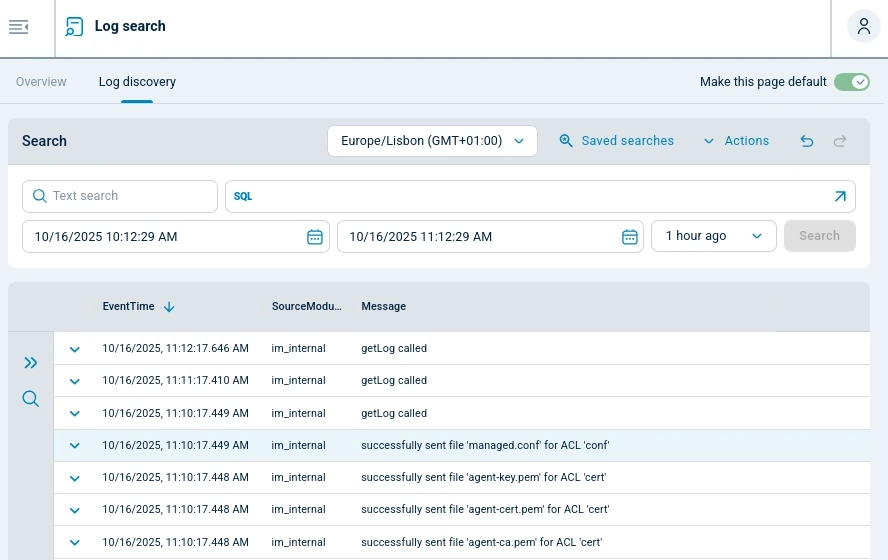
This example is easy to try from the NXLog Platform UI by assigning the default configuration Agent logs to Platform to an agent. Once you have configured your agent to send data to NXLog Platform, navigate to Logs > Log search > Log discovery to view the forwarded events.
Send events over TCP
NXLog Agent can forward data using industry-standard data transfer protocols, such as TCP.
This configuration collects syslog messages, a popular logging format for Unix-based operating systems, and forwards them to a remote host using the TCP output module.
<Input system_messages>
    Module    im_file
    File      '/var/log/syslog' (1)
</Input>

<Output siem>
    Module    om_tcp
    Host      192.168.1.1:5500 (2)
</Output>

<Route system_messages_to_siem>
    Path      system_messages => siem
</Route>| 1 | The file’s access permissions might prevent NXLog Agent from retrieving data. For help fixing this issue, see our troubleshooting section. |
| 2 | The Host directive specifies the IP address and port of the remote host. |
Depending on requirements and security concerns, NXLog Agent can use more complex security connection options. For example, NXLog Agent can establish a connection to a remote host using TLS/SSL for a certificate-based mutual authentication.