
Manage certificates
NXLog Platform provides a central control point to manage the certificates used by agents to communicate securely with external systems.
Add a certificate
Follow these steps to add a certificate:
-
Navigate to Agents > Certificates.
-
Click Add certificate.

-
Provide the destination name of the certificate. The destination name is used to identify the certificate on NXLog Platform.
-
If required, provide the password for the certificate files.
-
Upload the files you want to add. You can upload certificate authority, certificate and private key files with the following file extensions:
.crt,.cer,.pem,.p7band.p7c. NXLog Platform validates the files and reports any errors.
-
Click Submit to add the certificate.
Use a certificate
Follow these steps to use a certificate in a configuration:
-
Navigate to Agents > Configurations.
-
Add a new configuration or edit an existing configuration.
-
In modules that use certificates, such as the TLS/SSL Transport output module, you can select the certificate from the list to fill out the certificate details.
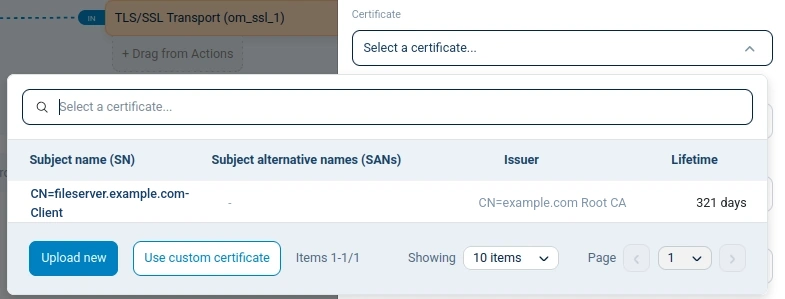
You can also upload a new certificate, or choose Use custom certificate to manually define the path of certificate files deployed locally on the agent.
Update a certificate
If your certificate is approaching its end date or has already expired, you can update it to maintain its functionality.
Follow these steps to update a certificate:
-
Navigate to Agents > Certificates.
-
Expand the certificate authority and find the relevant certificate.
-
Choose View details from the … dropdown menu.
-
Click Update.
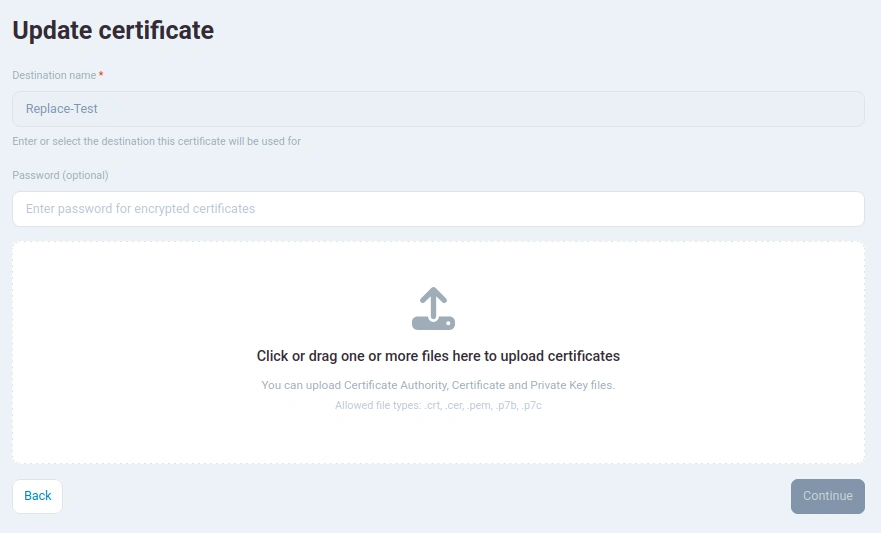
NXLog Platform keeps the destination name defined when the certificate was first added.
-
If required, provide the password for the certificate files.
-
Upload the files to update. You can upload certificate authority, certificate and private key files with the following file extensions:
.crt,.cer,.pem,.p7b, and.p7c. NXLog Platform validates the files and reports any errors.
-
Click Submit to update the certificate.
After updating a certificate on NXLog Platform, you need to synchronize agents using configurations that reference that certificate. See Update agent certificate files for more information.
Update agent certificate files
When you update certificate files on NXLog Platform, the local certificate files on agents are still the old ones. In this situation, certificates have the Not synchronized status. To complete the update process, you need to update the local certificate files on agents.
Follow these steps to update agents with the new certificate:
-
Navigate to Agents > Certificates.
-
Expand the certificate authority and find the relevant certificate.
-
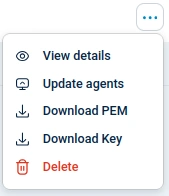
Click Update agents from the … dropdown menu.
Download certificate files
Follow these steps to download certificate files:
-
Navigate to Agents > Certificates.
-
Expand the certificate authority and find the relevant certificate.
-
Click Download PEM or Download Key from the … dropdown menu.
Delete a certificate
If you no longer need a certificate, for example an expired certificate, you can delete it. NXLog Platform only allows you to delete certificates that are not currently in use by any configuration.
Follow these steps to delete a certificate:
-
Navigate to Agents > Certificates.
-
Locate the relevant certificate in the certificate authority.
-
Choose Delete from the … dropdown menu. NXLog Platform will return one of the following results:
-
If the certificate is not in use, you can complete the deletion.

-
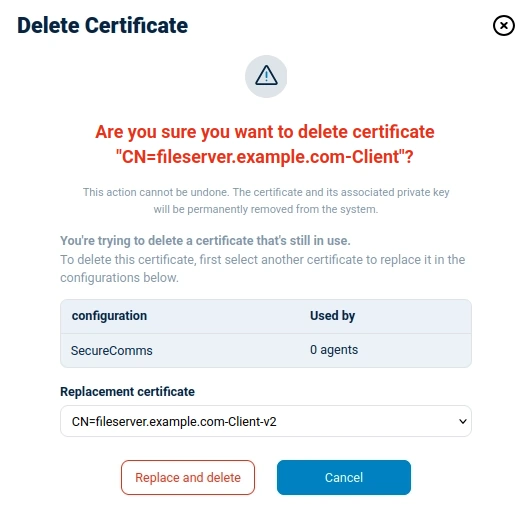
If your certificate is in use but you have additional valid certificates for the same certificate authority, NXLog Platform will only allow you to delete the certificate if you select a replacement certificate.
-
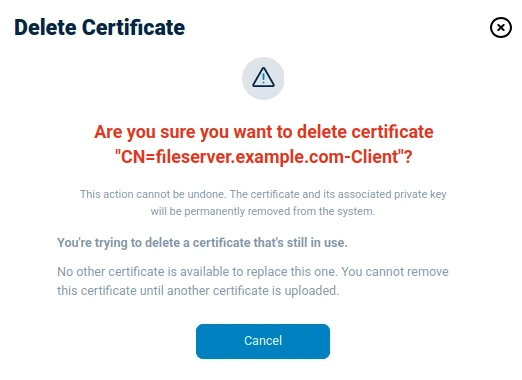
Finally, if your certificate is in use but NXLog Platform can not find a valid certificate to replace it, you will not be allowed to proceed with the deletion.
-