Configuration builder
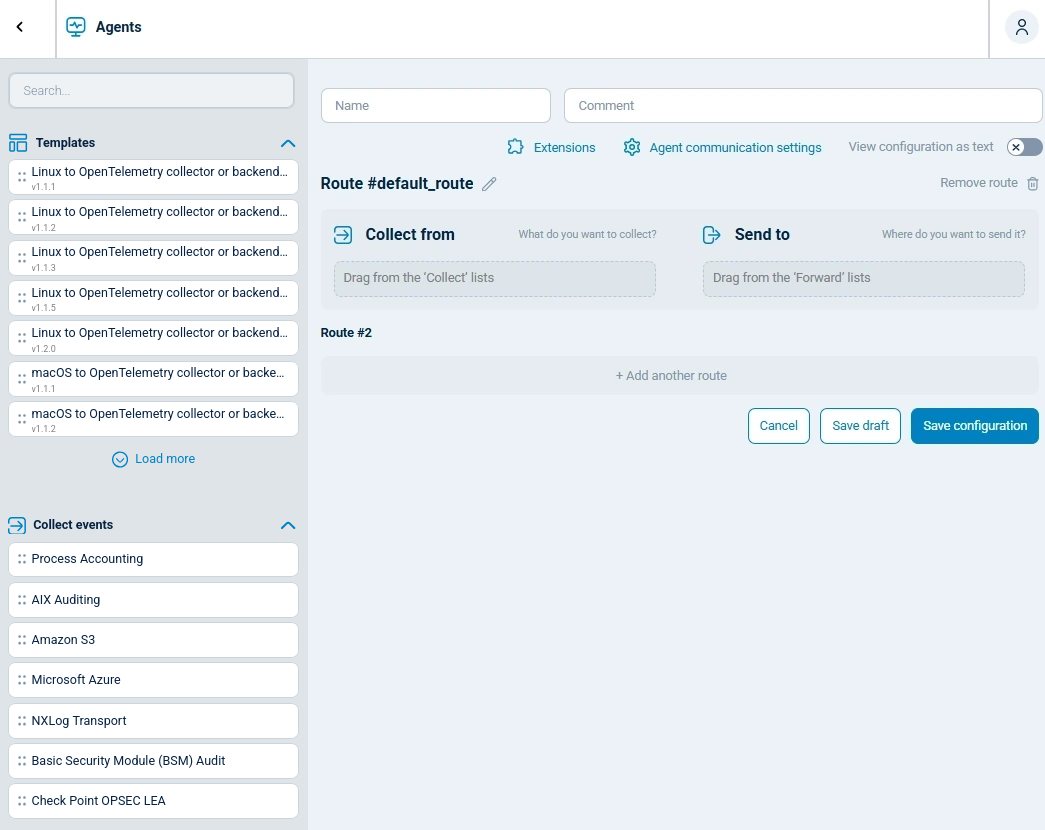
When you click the Add configuration button on the Configurations page, NXLog Platform takes you to the configuration builder. Here, you can visualize your agent configuration’s data flow and save it. Use the interactive configuration builder to create your configuration, or click View configuration as text to switch to the configuration text editor.
| Setting | Description |
|---|---|
Name |
A free text field. Enter a name for your configuration here. |
Comment |
A free text field. Add an optional description for your configuration here. |
Route # |
The name of the route. Edit the route’s name by clicking on the adjacent pencil icon. NXLog Platform numbers routes by default. In the configuration builder, you always add configuration components within the context of a route. |
Extensions |
Use this option to configure any extension module included in your configuration. NXLog Platform automatically adds extension modules to the configuration if another module or a process requires them. |
Agent communication settings |
Use this option to configure the NXLog Agent remote management settings. |
View configuration as text |
Use this switch to toggle between the interactive and the text-based view. |
Collect from |
A list of data sources. Drag and drop a data source from one of the Collect snippet lists to an empty Collect from module slot to configure the data source. |
Send to |
A list of destinations. Drag and drop a destination from one of the Forward snippet lists to an empty Send to module slot to configure the destination. |
+ Add another route |
Click this button to add another route with different configuration components. |
Configuration snippets
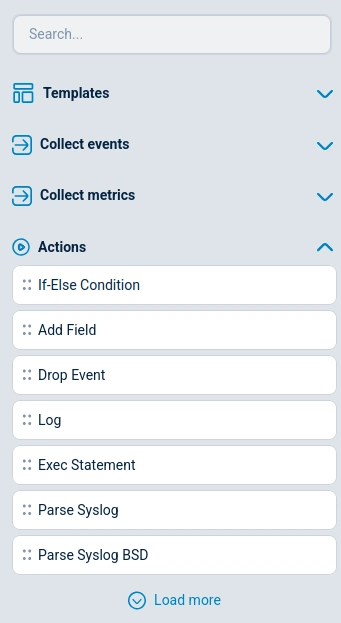
The configuration builder includes snippets you can use to create your configuration. Snippets can either be pre-built configuration templates for specific use cases, or smaller NXLog Agent configuration components for building a configuration from scratch.
| Name | Description |
|---|---|
Templates |
A list of templates. Drag and drop a template to the Configuration details panel to add it to the configuration. |
Collect events |
A list of event data sources. Drag and drop an event data source to a module slot to add it to the configuration. |
Collect metrics |
A list of metrics data sources. Drag and drop a metrics data source to a module slot to add it to the configuration. |
Actions |
A list of actions that you can execute on records. Drag and drop an action to a process slot to add it to the configuration. For more information, see Configuration actions. |
Forward events |
A list of destinations for event data. Drag and drop an event data destination to a module slot to add it to the configuration. |
Forward metrics |
A list of destinations for metrics data. Drag and drop a metrics data destination to a module slot to add it to the configuration. |
Configuration actions
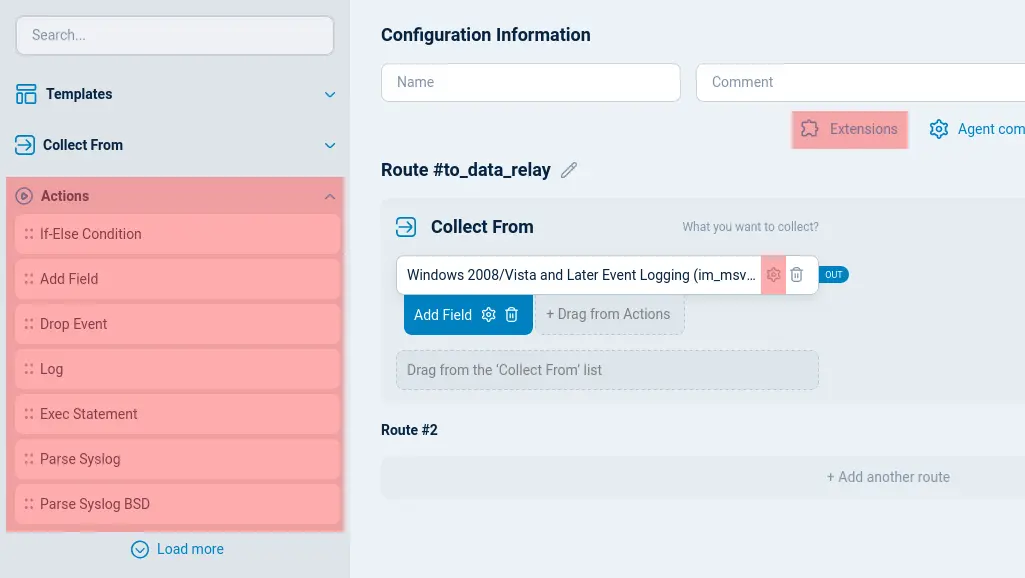
You can add Actions to your configuration from the configuration builder. Configuration actions are the building blocks of advanced log processing. You can see the available actions to execute on records under Actions. You can drag and drop an action to an action slot to add it to the configuration. Configure actions by clicking on the cogwheel icon after you drop the action into a configuration.
Some actions require extension modules. For example Parse syslog requires the Syslog extension module. Configure the extensions required by your configuration in Extensions.
| Action | Description |
|---|---|
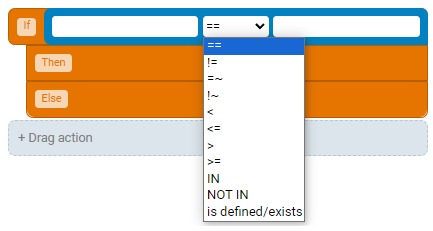
If-Else condition |
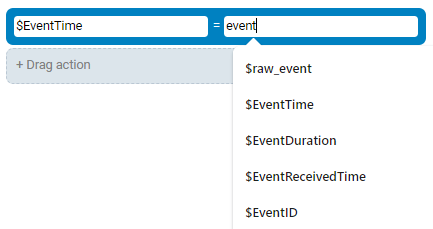
Conditions help you define if-then-else statements and set operators for your condition. The text fields on both sides of the operators offer suggestions as you type.
For more information about statements, see the Statements page in the NXLog Agent Reference Manual. |
Add field |
Using this action, you can define new fields. The input fields provide suggestions as you type.
For more information about fields, see the Core fields page in the NXLog Agent Reference Manual. |
Drop event |
You can use this action to conditionally discard records.
For more information on procedures such as drop, see the Core procedures page in the NXLog Agent Reference Manual. |
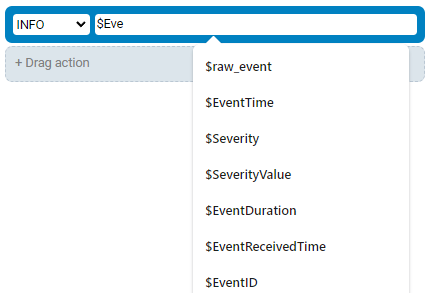
Log |
You can use this action to send the defined log data to an NXLog Agent’s internal log with the chosen severity. The input field provides suggestions as you type.
For more information on procedures such as log, see the Core procedures page in the NXLog Agent Reference Manual. |
Exec statement |
You can use the Exec statement action to include statements in your configuration executed when receiving logs.
See the Exec section in the NXLog Agent Reference Manual to learn more. |
Convert to (format) |
Convert the fields in the record to one of the supported formats, and return the result as the
For more information about formatting log data in the available formats, see the following pages in the NXLog Agent Reference Manual: |
Extract (format) |
Extract the log data from a specific node in the
For more information about extracting log data from one the available formats, see the following pages in the NXLog Agent Reference Manual: |
Parse (format) |
Parse the fields in the record to one of supported formats.
For more information about parsing log data to one of the available formats, see the following pages in the NXLog Agent Reference Manual: |