
Customize the Agents view
You can customize the Agents view to suit your needs, including filtering the list to focus on specific agents, and configuring the display name and columns shown in the agents table.
Filter agents
Use filters to narrow the agents table by a field of interest. For example, filtering the list for offline agents. Click Show filters to open the filters panel.
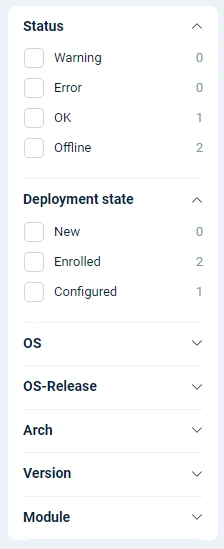
For an explanation of the available fields, see Agent status, Agent deployment state and Agent properties.
Configure agent display names
You can configure the display name of agents listed in the Agents view. For example, the display name could consist of the hostname and location to make it easier to identify agents at a glance. You can define the display name format globally, for a group of agents, or for individual agents.
Configure the global display name format
Follow these steps to configure the global display name:
-
Navigate to Agents and switch to the Agents view.
-
Click on the cogwheel icon in the Display name column.
-
Select the name type you want to use.
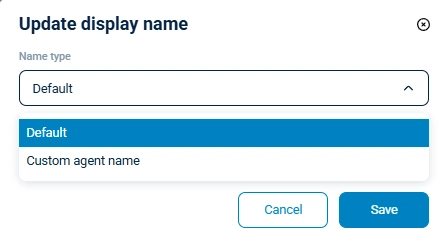
The default is the hostname of the machine where NXLog Agent is installed. -
If you chose the Custom agent name type, enter the display name format. You can use fixed strings and agent fields enclosed in curly brackets (
{ }). Type{to see a list of the available fields.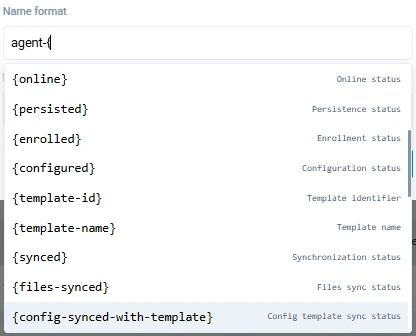
-
You will see a warning if you currently have agents with an existing individual display name. Select the override option if you want to apply the new global display name format to all agents, including those with existing display names.
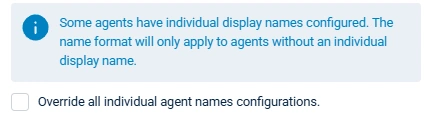
-
Click Save to apply your changes.
Configure the display name of specific agents
Follow these steps to configure the display name for one or more agents:
-
Navigate to Agents and switch to the Agents view.
-
Select the agent(s) you want to update.
-
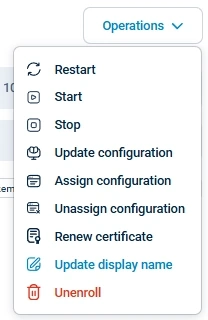
Click Operations and select Update display name.
-
Select the name type you want to use.
The default is the hostname of the machine where NXLog Agent is installed. -
If you chose the Custom agent name type, enter the display name format. You can use fixed strings and agent fields enclosed in curly brackets (
{ }). Type{to see a list of the available fields.
-
Click Save to apply your changes.
Configure columns
You can choose the columns and their order in the agents table according to your preference. The only limitations are that you cannot remove the Display name and Actions columns, and you cannot change the position of the Actions column.
To change the order of the columns, drag and drop the column title to the intended location. To select the displayed columns, click Configure columns to open the column list.
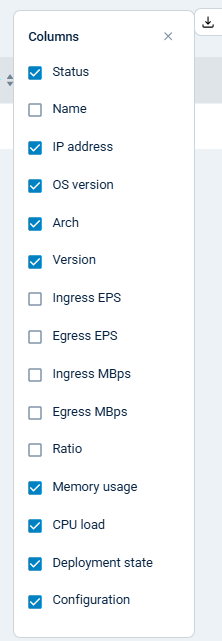
For a list of the available columns, see Agent properties.