
Collect logs from Windows DHCP Server
DHCP (Dynamic Host Configuration Protocol) is a network management protocol that dynamically assigns IP addresses to client machines on your network. By default, Windows DHCP Server writes audit events to a log file and operational events to Windows Event Log. NXLog Agent can collect DHCP Server events from both of these sources.
DHCP audit logging
Windows DHCP Server provides an audit logging feature that writes server activity to log files.
The log files are named DhcpSrvLog-<DAY>.log for IPv4 and DhcpV6SrvLog-<DAY>.log for IPv6.
For example, Friday’s log files are DhcpSrvLog-Fri.log and DhcpV6SrvLog-Fri.log.
ID,Date,Time,Description,IP Address,Host Name,MAC Address,User Name, TransactionID, QResult,Probationtime, CorrelationID,Dhcid,VendorClass(Hex),VendorClass(ASCII),UserClass(Hex),UserClass(ASCII),RelayAgentInformation,DnsRegError.
00,02/27/26,07:30:22,Started,,,,,0,6,,,,,,,,,0
55,02/27/26,07:31:15,Authorized(servicing),,test.com,,,0,6,,,,,,,,,0ID,Date,Time,Description,IPv6 Address,Host Name,Error Code, Duid Length, Duid Bytes(Hex),User Name,Dhcid,Subnet Prefix.
11010,02/27/26,07:30:22,DHCPV6 Started,,,,,,,,,,
1103,02/27/26,07:31:15,Authorized(servicing),,test.com,,,,,,,,You can configure DHCP audit logging using PowerShell or the DHCP Management Console.
Configure DHCP audit logging using PowerShell
Follow these steps to configure DHCP audit logging:
-
Use the Get-DhcpServerAuditLog cmdlet to view the current DHCP audit log configuration.
> Get-DhcpServerAuditLog Path : C:\WINDOWS\system32\dhcp Enable : True MaxMBFileSize : 70 DiskCheckInterval : 50 MinMBDiskSpace : 20 -
If necessary, use the Set-DhcpServerAuditLog cmdlet to change audit logging settings. When changing the path, ensure that you specify an existing directory. The command does not validate the path, and the DHCP Server service fails to write logs if the directory does not exist.
> Set-DhcpServerAuditLog -Enable $True -Path C:\dhcp -
Restart the DHCP server for the new configuration to take effect.
> Restart-Service DHCPServer
Configure DHCP audit logging using the DHCP Management Console
Follow these steps to configure DHCP audit logging.
-
Open the DHCP MMC snap-in (
dhcpmgmt.msc), expand the server name, and click IPv4.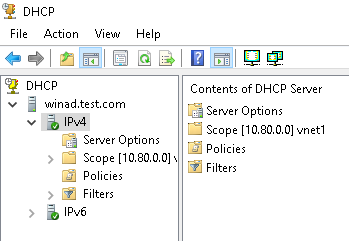
-
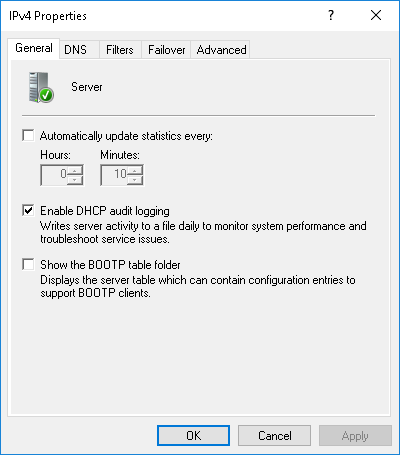
Right-click on IPv4 and choose Properties. The context menu is only fully populated after you expand IPv4 at least once.
-
Ensure Enable DHCP audit logging is selected.
-
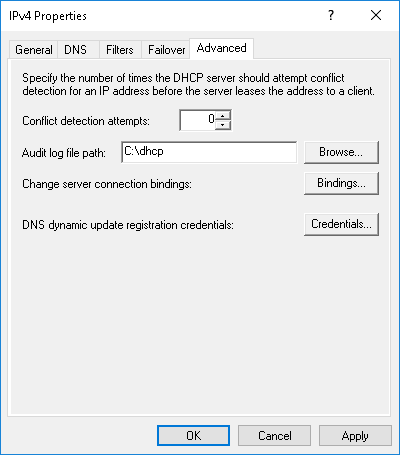
Switch to the Advanced tab to view or change the Audit log file path.
-
Click OK to save your changes.
-
Repeat the steps for IPv6 if necessary.
-
Restart the DHCP server by right-clicking the server name and selecting All Tasks > Restart.
Collect DHCP Server audit logs
Windows DHCP Server writes audit events to a file in CSV format. NXLog Agent can collect DHCP Server audit logs using the File input module and then parse them using the CSV extension.
This configuration collects DHCP IPv4 and IPv6 audit logs. Since the two use a different CSV format, it uses two input instances to process the log files separately. For demonstration purposes, it converts the events to JSON format using the JSON extension.
Any line that does not match the /^\d+,/ regular expression is discarded with the drop() procedure.
This ensures that all header lines are dropped.
The event ID and QResult codes are resolved automatically, with corresponding $Message and $QMessage fields added where applicable.
<Extension dhcpv4_parser>
    Module    xm_csv
    Fields    ID, Date, Time, Description, IPAddress, Hostname, MACAddress, \
              UserName, TransactionID, QResult, ProbationTime, CorrelationID, \
              DHCID, VendorClassHex, VendorClassASCII, UserClassHex, \
              UserClassASCII, RelayAgentInformation, DnsRegError
</Extension>

<Extension dhcpv6_parser>
    Module    xm_csv
    Fields    ID, Date, Time, Description, IPv6Address, Hostname, ErrorCode, \
              DuidLength, DuidBytesHex, UserName, Dhcid, SubnetPrefix
</Extension>

<Extension json>
    Module    xm_json
</Extension>

<Input dhcp_ipv4>
    Module    im_file
    File      'C:\Windows\system32\dhcp\DhcpSrvLog-*.log'
    <Exec>
        if (get_var("qres_message") == undef) {
            set_var("qres_message", ( 0 => "NoQuarantine", \
                                      1 => "Quarantine",   \
                                      2 => "Drop Packet",  \
                                      3 => "Probation",    \
                                      6 => "No Quarantine Information" ));
        }

        if (get_var("ipv4_msg") == undef) {
            set_var("ipv4_msg", ( 0 => "The log was started.", \
                                  1 => "The log was stopped.", \
                                  2 => "The log was temporarily paused due to low disk space.",  \
                                  10 => "A new IP address was leased to a client.",  \
                                  11 => "A lease was renewed by a client.",  \
                                  12 => "A lease was released by a client.",  \
                                  13 => "An IP address was found to be in use on the network.",  \
                                  14 => "A lease request could not be satisfied because the scope's address pool was exhausted.",  \
                                  15 => "A lease was denied.",  \
                                  16 => "A lease was deleted.",  \
                                  17 => "A lease was expired and DNS records for an expired leases have not been deleted.",  \
                                  18 => "A lease was expired and DNS records were deleted.",  \
                                  20 => "A BOOTP address was leased to a client.",  \
                                  21 => "A dynamic BOOTP address was leased to a client.",  \
                                  22 => "A BOOTP request could not be satisfied because the scope's address pool for BOOTP was exhausted.",  \
                                  23 => "A BOOTP IP address was deleted after checking to see it was not in use.",  \
                                  24 => "IP address cleanup operation has began.",  \
                                  25 => "IP address cleanup statistics.",  \
                                  30 => "DNS update request to the named DNS server.",  \
                                  31 => "DNS update failed.",  \
                                  32 => "DNS update successful.",  \
                                  33 => "Packet dropped due to NAP policy.",  \
                                  34 => "DNS update request failed as the DNS update request queue limit exceeded.",  \
                                  35 => "DNS update request failed.",  \
                                  36 => "Packet dropped because the server is in failover standby role or the hash of the client ID does not match." ));
        }

        # Only process lines that begin with an event ID
        if ($raw_event =~ /^\d+,/) {
            $FileName = file_name();

            dhcpv4_parser->parse_csv();
            $QResult = integer($QResult);
            $QMessage = $$qres_message($QResult);

            $EventTime = strptime($Date + ' ' + $Time, '%m/%d/%y %H:%M:%S');
            delete($Date);
            delete($Time);

            $ID = integer($ID);
            if ($ID < 50) {
                $Message = $$ipv4_msg($ID);
                if ($Message == undef) {
                    $Message = "No message specified for this Event ID.";
                }
            }
            else if ($ID >= 50) {
                $Message = "Codes above 50 are used for Rogue Server Detection information.";
            }
        }
        # Discard lines that do not begin with an event ID
        else {
            drop();
        }

        to_json();
    </Exec>
</Input>

<Input dhcp_ipv6>
    Module    im_file
    File      'C:\Windows\system32\dhcp\DhcpV6SrvLog-*.log'
    <Exec>
        if (get_var("ipv6_msg") == undef) {
            set_var("ipv6_msg", ( 1103 => "DHCPv6 server authorized and servicing requests.",  \
                                  11000 => "DHCPv6 Solicit.",  \
                                  11001 => "DHCPv6 Advertise.",  \
                                  11002 => "DHCPv6 Request.",  \
                                  11003 => "DHCPv6 Confirm.",  \
                                  11004 => "DHCPv6 Renew.",  \
                                  11005 => "DHCPv6 Rebind.",  \
                                  11006 => "DHCPv6 Decline.",  \
                                  11007 => "DHCPv6 Release.",  \
                                  11008 => "DHCPv6 Information Request.",  \
                                  11009 => "DHCPv6 Scope Full.",  \
                                  11010 => "DHCPv6 Started.",  \
                                  11011 => "DHCPv6 Stopped.",  \
                                  11012 => "DHCPv6 Audit log paused.",  \
                                  11013 => "DHCPv6 Log File.",  \
                                  11014 => "DHCPv6 Bad Address.",  \
                                  11015 => "DHCPv6 Address is already in use.",  \
                                  11016 => "DHCPv6 Client deleted.",  \
                                  11017 => "DHCPv6 DNS record not deleted.",  \
                                  11018 => "DHCPv6 Expired.",  \
                                  11019 => "DHCPv6 Leases Expired and Leases Deleted.",  \
                                  11020 => "DHCPv6 Database cleanup begin.",  \
                                  11021 => "DHCPv6 Database cleanup end.",  \
                                  11022 => "DNS IPv6 Update Request.",  \
                                  11023 => "DNS IPv6 Update Failed.",  \
                                  11024 => "DNS IPv6 Update Successful.",  \
                                  11028 => "DNS IPv6 update request failed as the DNS update request queue limit exceeded.",  \
                                  11029 => "DNS IPv6 update request failed.",  \
                                  11030 => "DHCPv6 stateless client records purged.",  \
                                  11031 => "DHCPv6 stateless client record is purged as the purge interval has expired for this client record.",  \
                                  11032 => "DHCPV6 Information Request from IPV6 Stateless Client." ));
        }

        # Only process lines that begin with an event ID
        if ($raw_event =~ /^\d+,/) {
            $FileName = file_name();

            dhcpv6_parser->parse_csv();

            $EventTime = strptime($Date + ' ' + $Time, '%m/%d/%y %H:%M:%S');
            delete($Date);
            delete($Time);

            $ID = integer($ID);
            $Message = $$ipv6_msg($ID);
            if ($Message == undef) {
                $Message = "No message specified for this Event ID.";
            }
        }
        # Discard lines that do not begin with an event ID
        else {
            drop();
        }

        to_json();
    </Exec>
</Input>{
"EventReceivedTime": "2026-02-27T07:30:22.130115-08:00",
"SourceModuleName": "dhcp_ipv4",
"SourceModuleType": "im_file",
"Hostname": "DHCP-SRV01",
"FileName": "C:\\Windows\\system32\\dhcp\\DhcpSrvLog-Fri.log",
"ID": 0,
"Description": "Started",
"TransactionID": "0",
"QResult": 6,
"DnsRegError": "0",
"QMessage": "No Quarantine Information",
"EventTime": "2026-02-27T07:30:22.000000-08:00",
"Message": "The log was started."
}Collecting DHCP Server logs from Windows Event Log
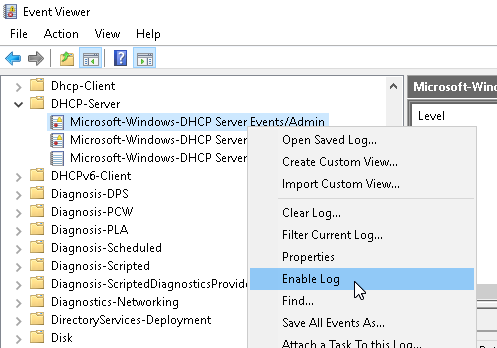
Windows DHCP Server writes events to three logs in Windows Event Log.
To activate the logs, open Event Viewer (eventvwr.msc), right-click each log under Applications and Services Logs > Microsoft > Windows > DHCP-Server, and select Enable Log.
Alternatively, you can use the following PowerShell script to ensure all three DHCP logs are active.
$LogNames = @("DhcpAdminEvents",
              "Microsoft-Windows-Dhcp-Server/FilterNotifications",
              "Microsoft-Windows-Dhcp-Server/Operational")
ForEach ($LogName in $LogNames) {
    $EventLog = Get-WinEvent -ListLog $LogName
    if ($EventLog.IsEnabled) {
        Write-Host "Already enabled: $LogName"
    }
    else {
        Write-Host "Enabling: $LogName"
        $EventLog.IsEnabled = $true
        $EventLog.SaveChanges()
    }
}This configuration uses the Event Log for Windows input module to collect DHCP Server events from the DhcpAdminEvents, FilterNotifications, and Operational logs.
<Input dhcp>
    Module    im_msvistalog
    <QueryXML>
        <QueryList>
            <Query Id="0">
                <Select Path="DhcpAdminEvents">*</Select>
                <Select Path="Microsoft-Windows-Dhcp-Server/FilterNotifications">*</Select>
                <Select Path="Microsoft-Windows-Dhcp-Server/Operational">*</Select>
            </Query>
        </QueryList>
    </QueryXML>
</Input>